
Change PowerShell Execution Policy using 3 different way in Windows 10
- Skilled Career HUB

- Aug 27, 2021
- 2 min read
PowerShell script cannot be loaded because the execution of scripts is disabled on this system? By default, Windows restricts running PowerShell scripts, as a security mechanism. To verify the PowerShell execution policy on your computer, you can use the Get-Execution Policy cmdlet.
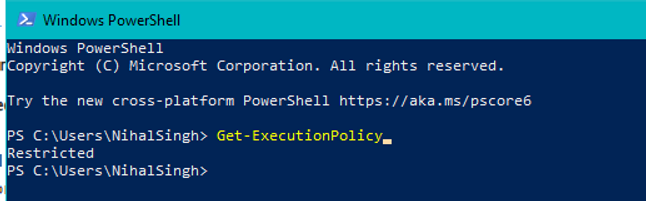
Restricted – No scripts can be run. Windows PowerShell can be used only in interactive mode.
All Signed – Only scripts signed by a trusted publisher can be run.
Remote Signed – Downloaded scripts must be signed by a trusted publisher before they can be run.
Unrestricted – No restrictions. All PowerShell scripts can be run.
In this tutorial we’ll show you how to change PowerShell execution policy in Windows 10 using command line, group policy or registry tweak.
Method 1: Change PowerShell Execution Policy with Command Line
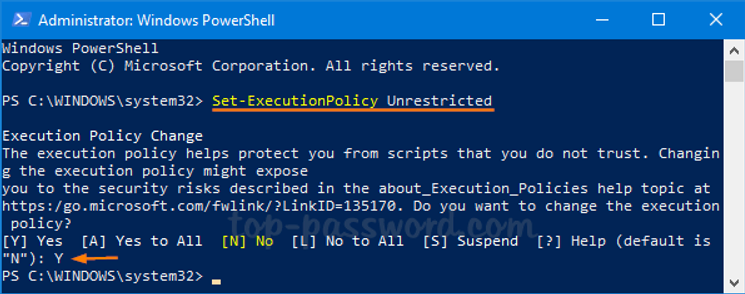
Open the PowerShell as administrator. You can use the Set-Execution Policy command to set the PowerShell execution policy as per your requirement.
Set-Execution Policy Unrestricted
Method 2: Change PowerShell Execution Policy with Group Policy
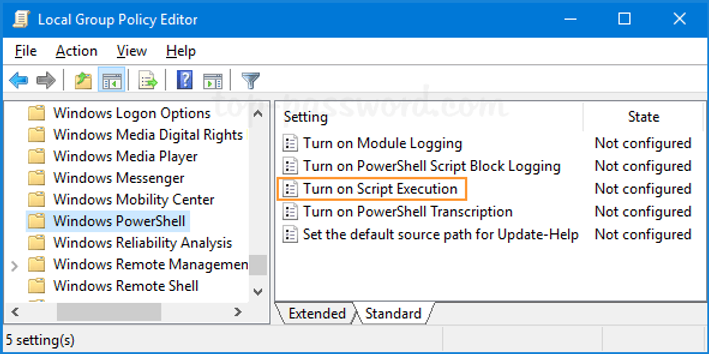
Open the Local Group Policy Editor and navigate to Computer Configuration -> Administrative Templates -> Windows Components -> Windows PowerShell. Double-click a setting called “Turn on Script Execution” on the right pane.
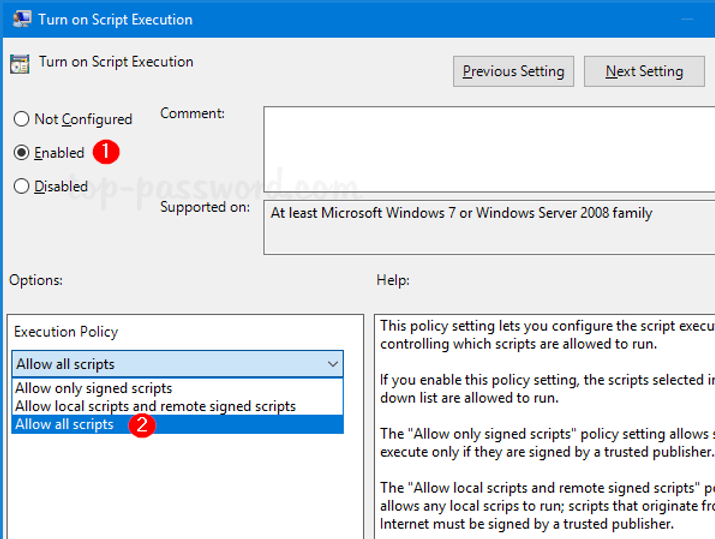
Select the Enabled option. Beneath it, you can click the drop-down list to set the execution policy to “Allow all scripts“. Click OK to save your changes.
Method 3: Change PowerShell Execution Policy with Registry Editor
Open Registry Editor and browse to the following registry key by copying and pasting it in the address bar and pressing Enter. Next, double-click the string Execution Policy on the right pane.
HKEY_LOCAL_MACHINE\SOFTWARE\Microsoft\PowerShell\1\ShellIds\Microsoft .PowerShell
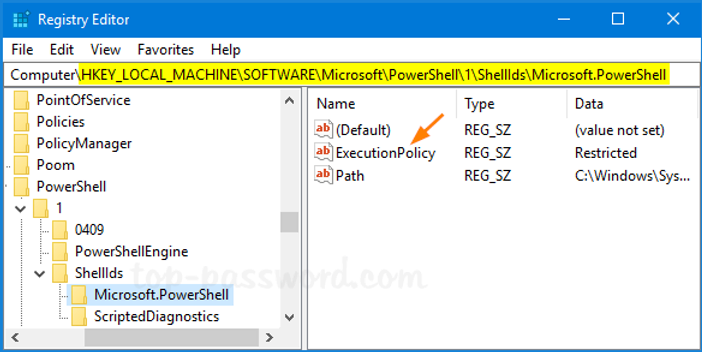
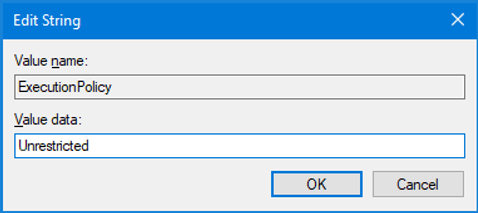
Set the value data to one of the following values: Restricted, All Signed, Remote Signed, Unrestricted, Undefined. Click OK and then close Registry Editor.
That’s it!
Comments