
DIAGNOSE MEMORY PROBLEMS IN WINDOWS 10
- Skilled Career HUB

- Aug 27, 2021
- 1 min read
How to Use Windows Memory Diagnostic Tool to Find Memory Problems
Setting Up the Tool
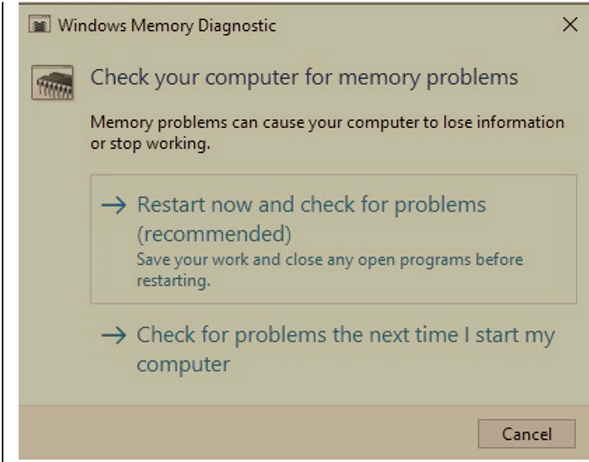
Start menu and type memory. Select the “Windows Memory Diagnostic, run this tool as administrator.
Select Restart now as shown below and check for problems.
Running the Memory Tests
the tools start directly into the Standard Mode, The test passes only take around ten minutes.

If you’re still having trouble and suspect a memory issue, run the tool again but press F1 on your keyboard as soon as your computer starts up. This takes you to the Advanced Options.

Reviewing Your Results
The Windows 10 Memory Diagnostic Tool provides you with your results after the restart finishes. You’ll see the results on your desktop. If nothing appears, view the results in Event Viewer.
1) Open the Start menu and type event viewer
2) Expand “Windows Logs” and right-click System. Select Find "Memory Diagnostics"
The most recent result should now be highlighted and the results showing in the bottom pane of the Event Viewer window.
Next Steps
If your results show that there are no errors, it’s probably not a memory issue. However, if there is an error, you can research the error description and details to determine if replacing the memory will fix the issue.
Depending on the type of computer you have, you can replace the memory chips yourself or take your computer in to be repaired.
let us know in case you have any queries about this solution.
Comments